QLNextTransfer
A downloadable tool
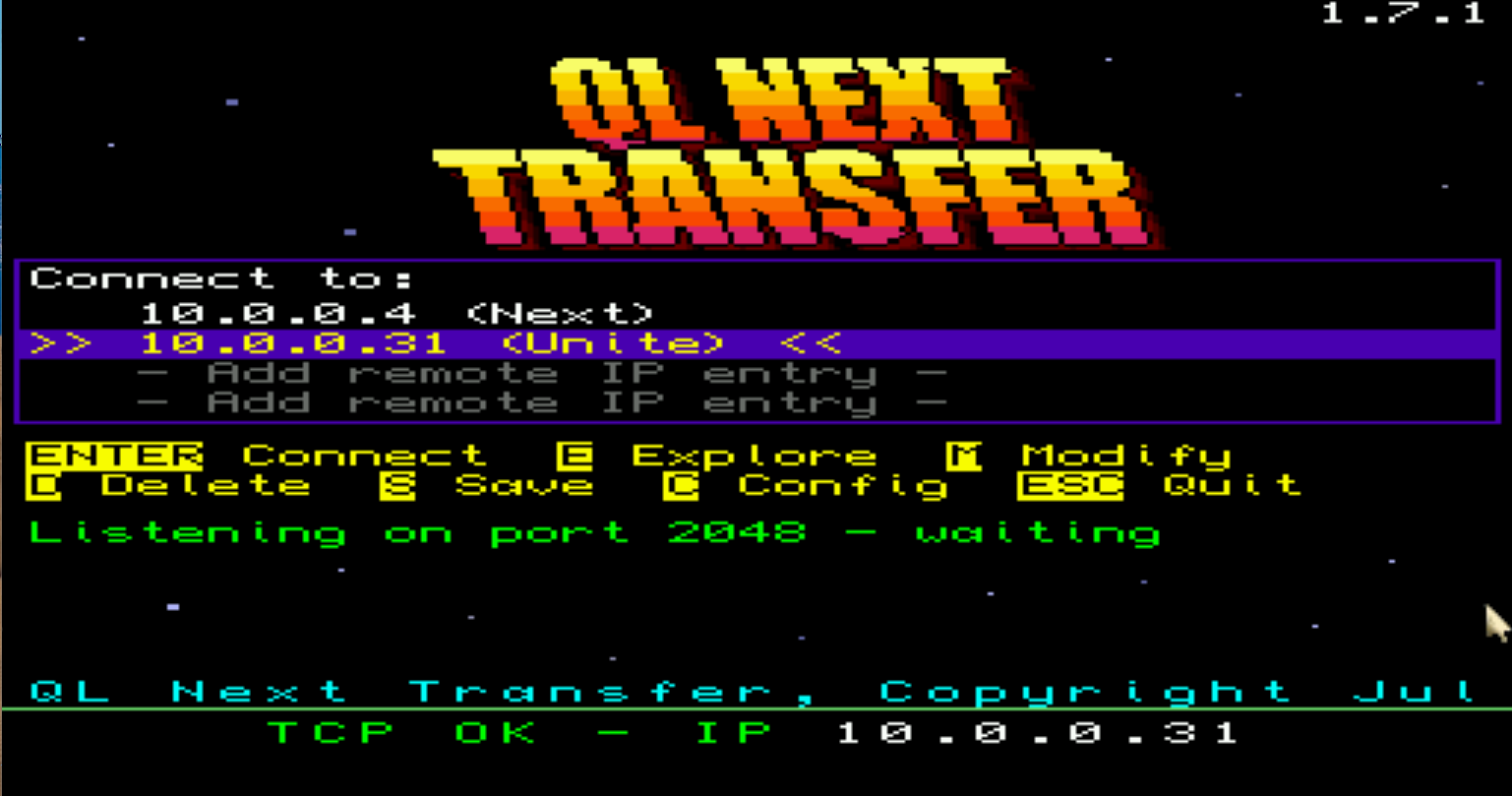
Copy files between a Sinclair QL and a Spectrum Next, another QL or your PC, over Wi‑Fi or your home network: one list of machines and ENTER. QL Next Transfer is a native QDOS job (built with qdos‑gcc C, drawn with the QL's own screen driver) that opens on a landing screen that is already listening. When another machine dials in, the dual‑pane Explorer opens by itself; to reach a machine yourself, pick it from the list and press ENTER. It runs on the ZX Spectrum Next's QL core, on QPC2, on sQLux and on other QDOS and SMSQ/E machines that have a network device.
QL Next Transfer is the quick way into QLNextRemote: the same Explorer, file server, CRC‑verified copies, OS protection and settings, with the Home menu replaced by one list of machines. It is the QL twin of ZX Next Transfer on the Next. It speaks the NextSync protocol (based on Jari Komppa's NextSync, with ZX‑Next‑Unite's extensions), so the other end can be ZX‑Next‑Unite's Remote Explorer on a PC, a Next running ZX Next Transfer, ZXNextRemote or the .sync5 dot command, or another QL running QL Next Transfer or QLNextRemote. On the Next's QL core it drives the Next's built‑in Wi‑Fi module directly (the ESP8266 behind SER3); on QPC2 and sQLux it uses their TCP_ network device.
Already own QLNextRemote? Then you already have QL Next Transfer: it ships inside every QLNextRemote download since 1.7.0, as qlnexttransfer_exe, at no extra cost.
Key Features
- Nothing to set up: as soon as the network is ready (the TCP_ device of QPC2, sQLux or SMSQ/E, or the Next's Wi‑Fi module once it has an address), it listens on TCP port 2048, and the strip at the bottom shows this QL's IP address, the one to type on the other end (on QPC2 and sQLux, the PC's own address)
- The Explorer opens by itself when a machine dials in: a Next's
.sync5 -L, or a QLNextRemote or ZXNextRemote Listener pointed at this QL. Leave the Explorer and each seated machine is told the session is over; the landing listens again - ENTER connects out: the landing lists four saved machines, by IP and nickname. ENTER on one connects to it as the Listener and serves this QL's drives to it (ZX‑Next‑Unite's Remote Explorer, or the Explorer of a Next or another QL); when the session ends, the landing comes back, listening, with the outcome on its status line
- A new machine is one octet away: ENTER on an empty row opens the IP editor already filled with this QL's own network (
192.168.1.), then asks for a nickname of up to 10 characters - A handful of keys: cursor up/down or q/a move, ENTER connects, E explores this QL's own drives, M modifies a machine, D deletes it (press it twice), S saves, C opens Settings, ESC quits (BREAK on a Next)
- Explore this QL's own drives with E, no network needed: copy, erase, rename and make folders across the QL's drives. While you browse, the landing is not listening; leave the Explorer and it listens again
- A mouse, on by default: click a row to select it, click it again to connect; the seven entries of the help lines are buttons too. On the Next's QL core, a PS/2 mouse plugged into the Next; on QPC2, its own mouse, through the Pointer Environment SMSQ/E has built in (no PTR_GEN needed); on sQLux, Q‑emuLator or a QL, once you load PTR_GEN
- Dual‑pane Explorer: this QL's drives and the other machine's, split or one at a time. Copy files and folders both ways (a folder's tree is rebuilt under the destination), rename, erase (a folder with everything in it, after asking), make folders and switch drives
- Safe copies: NextSync checksums every block and re‑sends a damaged one, and each file is then CRC‑32 checked; a copy that doesn't match is deleted and named in red
- A progress line on every copy the QL's Explorer makes (percentage, size, speed and time left), and ESC (BREAK on a Next) stops such a copy, even in the middle of a file: the part‑copied file is deleted and the files already copied are kept
- Graphic 8 (the default), Graphic 4 at 512×256 and the 85‑column Text on every machine, on a dark theme, switched from Settings at once. Graphic 256 where the machine has it: on QPC2 set to High colour (mode 32), with no driver to load, and on the Next's QL core through SCN, Simon N Goodwin's free colour driver (a separate download), which
TRANSFER_basloads for you. The landing then shows ZX Next Transfer's logo, lettered QL NEXT / TRANSFER, in a sky of twinkling stars (in Graphic 4 and 8 too) - Network transport Auto (the default), TCP or ESP: Auto uses the TCP_ device where there is one and the Next's Wi‑Fi module on the Next's QL core
- Shares QLNextRemote's settings: the same settings file (
win1_qlnextremote_cfg) and the same saved machines, so the two jobs can sit side by side. Settings → Machines holds six; the landing shows the first four. It remembers the machine you last connected to and starts the cursor there next time - Built‑in OS‑level protection for the QL's system files (Off, Write, Read+write), against requests from the network and the QL's own Explorer alike
- Multi‑drive support: win1/win2, flp1/flp2, ram1, mdv1/mdv2 (default W and F; only the drives that answer are offered)
- Big folders: up to 4096 entries per pane, sorted; long names on a Next are kept whole, up to 255 characters
- Over‑the‑air updates from ZX‑Next‑Unite 9.7.50 or later, with a QLNextRemote package: see Updating, below
- Includes a complete PDF user manual, with a section of its own for QL Next Transfer
- Three forms of the job:
- sqlux: for the folders the sQLux emulator mounts
- qemulator: the job with its QDOS header inside the file, for Q‑emuLator; it is also the form ZX‑Next‑Unite's updater sends
- qdos: the raw job plus SuperBASIC installers and launchers, for QPC2, the Next's QL core and native QDOS or SMSQ/E drives
What you need
- The QL side, one of: QPC2 (SMSQ/E); the sQLux emulator; a ZX Spectrum Next running the QL core, with its Wi‑Fi module joined to your network once from NextZXOS's own Wi‑Fi setup (it stays joined when you switch to the QL core); another QDOS or SMSQ/E machine with a TCP_ device, such as SMSQmulator or a Q68 with the QoE Ethernet driver. An original QL has no network device yet.
- The other end, on the same network: ZX‑Next‑Unite on a PC (9.7.50 or later to update QL Next Transfer and to CRC‑check what it sends to it); a Spectrum Next running ZX Next Transfer, ZXNextRemote or the
.sync5dot command; or another QL running QL Next Transfer or QLNextRemote. - Toolkit II's commands: sQLux for Windows ships and loads Toolkit II, the Next's QL core loads it as a ROM, and SMSQ/E's SBASIC (QPC2, Q68, SMSQmulator) has the same commands. Nothing to install.
Setting up and starting
On every machine the job lives at win1_HOME_qlnexttransfer_exe, in the HOME folder of win1_: the copy ZX‑Next‑Unite updates, so always start that one. Your settings (win1_qlnextremote_cfg, shared with QLNextRemote) and the log (win1_qlnt_log, and win1_qlnt_log_old before it) stay at the root of win1_. Pick your machine below; the commands are typed at the SuperBASIC (SBASIC) prompt.
QPC2
- For 256 colours, set QPC2's Colour mode to High colour (mode 32) once, in its configuration. In another colour mode QL Next Transfer says so and shows Graphic 8.
- Make the folder
C:\QL\qpc\on the PC and copyqdos/qlnexttransfer_binandqdos/QPCTRANSFER_basfrom the zip into it. QPC2's DOS1 device isC:\as it comes, so that folder isdos1_QL_qpc_on the QL side: nothing to configure. QPCTRANSFER_bas reads from exactly that folder, so keep its name. - Type:
LRUN dos1_QL_qpc_QPCTRANSFER_bas
It checks that the job is the size it expects (take both files from the same zip) and that win1_ has room, writeswin1_HOME_qlnexttransfer_exewith its QDOS header, saves itself beside it aswin1_HOME_QPCTRANSFER_basand starts QL Next Transfer in Graphic 256. It touches no other file: QLNextRemote and any _bin file on win1_ are left alone. If win1_ is too full, it says how many 512‑byte sectors it needs and writes nothing: free some space and type the line again. - Later starts need no install:
LOAD win1_HOME_QPCTRANSFER_basRUN 300(two lines), or directlyEXEC_W win1_HOME_qlnexttransfer_exe;'scn', both in Graphic 256. A plainEXEC_W win1_HOME_qlnexttransfer_exeuses the display set in Settings (C, then 4, 2 and s keeps Graphic 256).
If Windows asks whether QPC2 may accept connections, allow it: that is how a Next or another QL dials this QL. If ZX‑Next‑Unite runs on the same PC, its Remote Explorer listens on port 2048 too, and the landing reads Port 2048 busy - C Config while it does: give this QL another Listen port (C, page 3; 2049, say), which another QL can dial. A Next dials 2048 only, so for a Next, quit Unite instead (see "Port 2048" under Known Limitations). For ENTER on the PC's row to reach Unite, start Unite's listen server before QL Next Transfer, or give this QL another Listen port: once the landing holds 2048, Unite's listen server cannot start there until the job quits.
ZX Spectrum Next running the QL core
- Join the Next to your Wi‑Fi network once with NextZXOS's own Wi‑Fi setup. The module stays joined when you switch to the QL core.
- Copy
qdos/qlnexttransfer_binandqdos/TRANSFER_basto the root of the SD card: with an SD card reader, or over Wi‑Fi while the Next runs NextZXOS, from ZX‑Next‑Unite's Remote Explorer (on the Next,.sync5 <PC's IP>once, then.sync5 -L). - Switch to the QL core (pick it at boot, holding C during a hard reset, or run
.core QLfrom the NextBASIC command line) and type:EW win1_scopy;'TRANSFER_bas win1_TRANSFER_bas'LRUN win1_TRANSFER_bas
The first line copies the script from the card to win1_ (the QL core reaches the card only through its scopy program). The second copies the job the same way, installswin1_HOME_qlnexttransfer_exewith its QDOS header, saves itself beside it aswin1_HOME_TRANSFER_basand starts QL Next Transfer. Right after a reset the first keystrokes can be lost: if SuperBASIC answers bad name, type the line again. - Later starts:
LOAD win1_HOME_TRANSFER_basRUN 300(two lines), orEXEC_W win1_HOME_qlnexttransfer_exe. - For Graphic 256, get SCN from its author's page and put its driver,
SCNDEV_BIN(1.48 or later), in win1_HOME_ (from the card:EW win1_scopy;'SCNDEV_BIN win1_HOME_SCNDEV_BIN'), then reset and start Minerva with twin screens (hold NMI and press 3 at its start screen).RUN 300then loads SCN and starts QL Next Transfer in Graphic 256; without SCN it starts in the display set in Settings. The manual's "More colours on a Next: Graphic 256" has the details, including which QL core it is made for. - In Settings (C), page 3, leave Network transport on Auto and UART speed on Slow (the default) or Medium.
On the Next's keyboard, the QL's ESC is BREAK, CTRL is GRAPH, ALT is EXTEND, and F1 to F5 are NMI + 1 to 5.
A Q68, SMSQmulator, or another QDOS or SMSQ/E machine with a network device
- Copy
qdos/qlnexttransfer_binandqdos/INSTALL_basto win1_. The installer always reads the job from win1_: if it sits on another drive, copy it across first (COPY flp1_qlnexttransfer_bin TO win1_qlnexttransfer_bin). - Type
LRUN win1_INSTALL_bas. It makes a HOME folder on win1_ if there is none and writeswin1_HOME_qlnexttransfer_exewith its QDOS header (it skips QLNextRemote unless awin1_qlnextremote_binis still on win1_ from an earlier install: delete that first, or INSTALL_bas reinstalls that old build). ThenDELETE win1_qlnexttransfer_bin: a leftover one would reinstall this build the next time INSTALL_bas runs. - Start it with
EXEC_W win1_HOME_qlnexttransfer_exe, now and from then on.
The machine needs a TCP_ device: SMSQmulator has one built in; on a Q68, load the QoE Ethernet driver (LRESPR Q68NET_BIN) and give it an address first.
The sQLux emulator (Windows)
- The stock
sqlux.inimounts no win1_ drive, so add one, for exampleDEVICE = WIN1,C:/QL/win1/,qdos-like. - In Windows Explorer, make the folder
C:\QL\win1\HOME\and copysqlux/qlnexttransfer_exeinto it (sQLux 1.1.2 for Windows can't make folders itself; sQLux's latest build can). - Start
sqlux.exe, allow it through the Windows firewall when asked (its TCP_ device needs that even on this PC), and typeEXEC_W win1_HOME_qlnexttransfer_exe.
The settings file is then C:\QL\win1\qlnextremote_cfg on the PC. sQLux has no Graphic 256: it shows Graphic 8.
Q‑emuLator (not tested): put qemulator/qlnexttransfer_exe in a HOME folder inside the folder Q‑emuLator mounts as win1_, and start it with EXEC_W win1_HOME_qlnexttransfer_exe. Whether Q‑emuLator offers the TCP_ device QL Next Transfer needs has not been checked.
On every machine, EW win1_HOME_qlnexttransfer_exe;'text' starts it in Text for that run, and EW win1_HOME_qlnexttransfer_exe;'scn' in Graphic 256 where the machine has it (Graphic 8 otherwise); neither saves anything.
Connecting
- On the landing, press ENTER on an empty row (
- Add remote IP entry -), type the other machine's IP and ENTER, then a nickname and ENTER. ENTER on a filled row connects to it and saves the list; S saves it at any time. - Set up the other end:
- A PC: ZX‑Next‑Unite 9.7.50 or later, with its Remote Explorer listen server started (NextSync tab, Remote Explorer; it listens on TCP 2048, so allow it through the PC's firewall). ENTER on the PC's row seats this QL in Unite's Remote Explorer, which browses the QL's drives and copies files both ways.
- A Next running ZX Next Transfer: nothing to set up. Press ENTER here on its row (its Explorer then drives this QL), or add this QL's address there and press ENTER on the Next (this QL's Explorer then drives the Next).
- A Next running ZXNextRemote: run its NextSync (Listener) with its NextSync controller IP set to this QL's address, or pick its NextSync (Controller) and press ENTER here on its row.
- A Next with just the
.sync5dot command: it's thesync5file in every ZX‑Next‑Unite release; put it inc:/dot, save this QL's address once with.sync5 <QL's IP>(the landing's bottom strip shows it), then dial in with.sync5 -L. The dot always dials port 2048, so on QPC2 or sQLux, if ZX‑Next‑Unite runs on the same PC, quit it (or stop its listen server) first: it holds that port. - Another QL: one running QL Next Transfer works as a Next running ZX Next Transfer does; on QLNextRemote, press 2 (Listener) with its NextSync controller IP set to this QL's address, or 1 (Controller) and press ENTER here on its row.
Updating
Download the new version from this page and install it again the same way: QPCTRANSFER_bas, TRANSFER_bas and INSTALL_bas each replace the job in win1_HOME_, and your settings stay as they are. On QPC2, take QPCTRANSFER_bas from the new zip too: it checks that the job beside it is the size it expects.
ZX‑Next‑Unite 9.7.50 or later can also update QL Next Transfer over the air: when the QL connects to it (ENTER on the PC's row) and runs an older build, Unite offers the new one. It sends it to W:/HOME/qlnexttransfer_exe (leave the path Unite offers at that), checks its CRC‑32 on the QL, keeps the old job as a .bak and swaps them; QL Next Transfer then restarts as the new version, dials Unite back, and shows its landing when that session ends. Unite takes that build only from the QLNextRemote package (qlnextremote-X.Y.Z.zip, dropped into its download folder or fetched by its itch.io check), not from this page's zip, so that route needs QLNextRemote. Such an update also puts QLNextRemote's job (win1_HOME_qlnextremote_exe), the README and both Next launchers into HOME beside it. It leaves win1_HOME_QPCTRANSFER_bas as it is, and its RUN 300 starts whatever job is there.
Known Limitations
- Built for one machine at a time. In a settings file that was never saved, Settings → Sessions is Off: one seat, which the next machine to dial in takes over. A file QLNextRemote saved first keeps its own value (On unless you changed it): change it under C, page 3. Both jobs share the file, so when QL Next Transfer saves it first (an ENTER on a row saves it), QLNextRemote runs with Sessions Off too, until you set it back to On in QLNextRemote's Settings.
- A row holds only an IP: every connection out goes to the Controller port of Settings page 1 (2048 unless changed).
- Two machines pressing ENTER on each other at the same moment both fail: each stops listening before it dials. Let one go back to its landing (it listens again at once) and press ENTER again on the other.
- While the landing is away (the local Explorer, Settings, a connection out), nothing serves a machine that dials in: on the Next's QL core the dial is refused; on a machine with a TCP_ device it waits, and is served if it is still waiting when the landing comes back. A QLNextRemote Listener's first dial gives up after five seconds: dial again once the landing listens.
- Port 2048 on a PC running ZX‑Next‑Unite. Unite's Remote Explorer listens on port 2048, so on QPC2 or sQLux on that same PC, while its listen server runs, the landing reads
Port 2048 busy - C Configand tries again every three seconds by itself; ENTER on the PC's row still reaches Unite. The other way round, once the landing holds 2048, Unite's listen server cannot start there until the job quits (on sQLux for Windows, until sQLux itself restarts: it never frees a closed listening port). To have the landing listen beside Unite, give it another Listen port: C, page 3 (2049, say; QLNextRemote shares the setting). Another QL dials that port with its Controller port (Settings page 1) set to match; a Next always dials 2048 (ZX Next Transfer, ZXNextRemote and the.sync5dot alike), so for a Next to dial this QL, quit Unite or stop its listen server instead, and keep this QL's Listen port at 2048. On the Windows sQLux, the job an update restarts reads "busy" until sQLux is restarted (its dial back to Unite is unaffected). - Wi‑Fi on the Next's QL core. UART speed Slow (the default) works with every module. At Medium the landing raises the module to the faster rate as soon as it listens: quit with ESC (BREAK) before leaving the QL core, which puts it back to 115200 for NextZXOS; after a hard reset it stays at Medium until the Next is power‑cycled. Fast isn't offered: the QL core has no flow control to the Wi‑Fi module. Don't run QL Next Transfer and QLNextRemote at once on a Next with the network up: they would talk to the one module together.
- Speed. On the Next's QL core each 1 KB block waits for its acknowledgement: QLNextRemote, the same program, measured about 4 KB/s at Slow and 5 to 9 KB/s at Medium there, copying from the QL to the PC.
- Updates need ZX‑Next‑Unite 9.7.50 or later. An older Unite never offers QL Next Transfer an update, doesn't CRC‑check the files it sends to it, and lets go of one that stops answering only after about ten minutes, which Disconnect can't shorten (don't press Disconnect on an unresponsive QL Next Transfer while other machines are seated). Updates reach only
win1_HOME_qlnexttransfer_exe: a copy started from anywhere else (a Windows folder through QPC2's DOS device, the root of an sQLux folder) is never updated. - Large files. Verify CRC defaults to "On 3.5MB", which skips the check on files over 3.5 MB (they are kept, unverified). "On" checks every file.
- Long names. A QL name holds 36 characters, its folders included, so a longer name from a Next stays on the Next: a copy to the QL refuses it before writing anything. Rename it on the Next first.
- Folders on the Windows build of sQLux. sQLux 1.1.2 for Windows can't create a folder in a PC folder, so folders pulled from a Next land flat there; sQLux's current Windows build, the latest download, includes the fix. The Next's QL core and QPC2 make real folders.
- Mouse. sQLux, Q‑emuLator and a real QL get a mouse only once you load PTR_GEN, Marcel Kilgus's Pointer Environment (not included), yourself. On a QPC2 screen bigger than 512×256, keys and clicks reach QL Next Transfer while the pointer is over its 512×256 area at the top left.
- Graphic 256 needs QPC2 in High colour (mode 32), or SCN on the Next's QL core. SCN is not included: fetch it from its author's page. sQLux and a real QL show Graphic 8.
- Tested machines. QL Next Transfer has been tested in sQLux (scripted, against PC test peers: the landing, dial‑ins, connections out, the hand‑off to the Explorer, installing and updating) and on QPC2 5.02 (SMSQ/E 3.38), where QPCTRANSFER_bas installed it and started it, this release's build included, its landing in Graphic 256 in High colour with the stars twinkling, listening on port 2048. Not yet run: the Next's QL core (Graphic 256 on SCN included), Q‑emuLator, SMSQmulator, a Q68, a ZX‑Next‑Unite update on QPC2, a machine dialing in to a QPC2 landing, and a session against a real Next running ZX Next Transfer, ZXNextRemote or the
.sync5dot. QLNextRemote, the same program with a Home menu, has run on a KS2 Next's QL core over its Wi‑Fi, on QPC2 and on sQLux. - Local network only. Nothing is encrypted and NextSync has no authentication. Never expose a QL, a Next, or the PC running ZX‑Next‑Unite directly to the internet.
What's in the download
- QLNextRemote-Manual.pdf: the full manual, shared with QLNextRemote. QL Next Transfer has its own section ("QL Next Transfer: the landing screen"); the rest covers installing on each machine, the Explorer, every setting, OS protection, updating from ZX‑Next‑Unite and troubleshooting.
- sqlux/qlnexttransfer_exe: the job for the sQLux emulator.
- qemulator/qlnexttransfer_exe: the same job with its 30‑byte QDOS file header in front, the form Q‑emuLator and QPC2's DOS device read from PC folders.
- qdos/qlnexttransfer_bin: the raw job, for the installers below.
- qdos/QPCTRANSFER_bas: QPC2's installer and launcher. It reads from
C:\QL\qpc\(dos1_QL_qpc_), installs the job into win1_HOME_ and starts it. - qdos/TRANSFER_bas: the installer and launcher for a ZX Spectrum Next running the QL core (loads SCN for Graphic 256 when it finds it). TRANSFER_bas once more at the zip's root: the same file, kept there as in the QLNextRemote package, whose copy ZX‑Next‑Unite's updater sends into HOME.
- qdos/INSTALL_bas: the installer for QPC2, a Q68, SMSQmulator and other QDOS or SMSQ/E drives.
- ipprobe/sqlux/ipprobe_exe and ipprobe/qemulator/ipprobe_exe: ipprobe, a diagnostic for when the bottom strip shows no IP address on QPC2 or sQLux. The sqlux form is for sQLux, the qemulator form for QPC2 and Q‑emuLator; the manual's "Which IP address can this QL see? (ipprobe)" says how to run it.
- README.md: the user guide as plain text. CHANGELOG.md: what changed in each release.
- LICENSE: the terms of use. THIRD-PARTY-NOTICES.md: credits and licences for the work QL Next Transfer builds on.
- deploypak.txt: this package's list of the files that go with the job (README.md and TRANSFER_bas); ZX‑Next‑Unite reads the QLNextRemote package's own list, not this one. You don't need to open it.
Credits
Wi‑Fi and network transfer based on NextSync by Jari Komppa (public domain), with fixes by Robin Verhagen-Guest. Sync4 protocol extensions by Julien Clauzel. Graphic 256 on the ZX Spectrum Next uses SCN, the colour device driver by Simon N Goodwin (CC BY-NC-SA 4.0, a separate download, not included). Details are in THIRD-PARTY-NOTICES.md, in the download.
QL Next Transfer, Copyright © 2026 Julien Clauzel Hi8Bytes.
ZX Spectrum Next is a trademark of SpecNext Ltd - https://www.specnext.com/
QPC2, SMSQ/E, PTR_GEN, sQLux, Q‑emuLator, SMSQmulator, Minerva, Toolkit II and SCN belong to their respective authors; the QL Next Transfer download doesn't include any of them.
Note: QL Next Transfer is provided as‑is. Support is community‑driven, and any issues or suggestions can be shared on GitHub: https://github.com/jclauzel/ZX-Next-Unite/issues.
While the NextSync protocol includes strong verification and retry mechanisms, remote file operations may still lead to data loss or corruption. QL Next Transfer carries no warranty, so please keep backups of important files (on a Next, a copy of the qxl.win image).
Download
Click download now to get access to the following files: